Ollama is often the easiest first step into local AI. It gives users a simple way to download and run models on their own machine, then expose them to applications through a local endpoint. A chat app can use that endpoint for conversation. A local AI workspace can use it for much more: workflows, source-grounded research, memory, board tasks, decisions, and agent operations.
This guide explains how to think about Ollama as one model layer inside a larger local workspace. The goal is not only to run a model. The goal is to make useful work happen on your machine with inspectable state.
What a local AI workspace needs
A local model is necessary but not sufficient. If the only interface is a chat box, you still need to copy results into tasks, schedules, documents, and decisions by hand. A workspace should connect the model to the places where work lives.
In Disp8ch, WebChat can answer and plan. Workflows can repeat jobs. Boards can track follow-up. Data Sources can ground answers in files and crawled docs. Council can record decisions. Memory can preserve approved context. Hierarchy can assign goals and agents.
Ollama can serve as the model runtime behind that loop.
Step 1: install Disp8ch
Start with the normal installer from the install page. The installer prepares the app and opens onboarding. You can choose Local AI during onboarding or add a local model later from Settings.
The default local endpoint for Ollama is:
http://127.0.0.1:11434Run Ollama and start the model you want to use. A common shape is:
ollama serve
ollama run <model-tag>
Use a model that fits the computer. Parameter count alone is not enough. Context size, quantization, architecture, GPU memory, system RAM, and runtime support all affect whether the model is practical.
Step 2: use hardware-aware recommendations
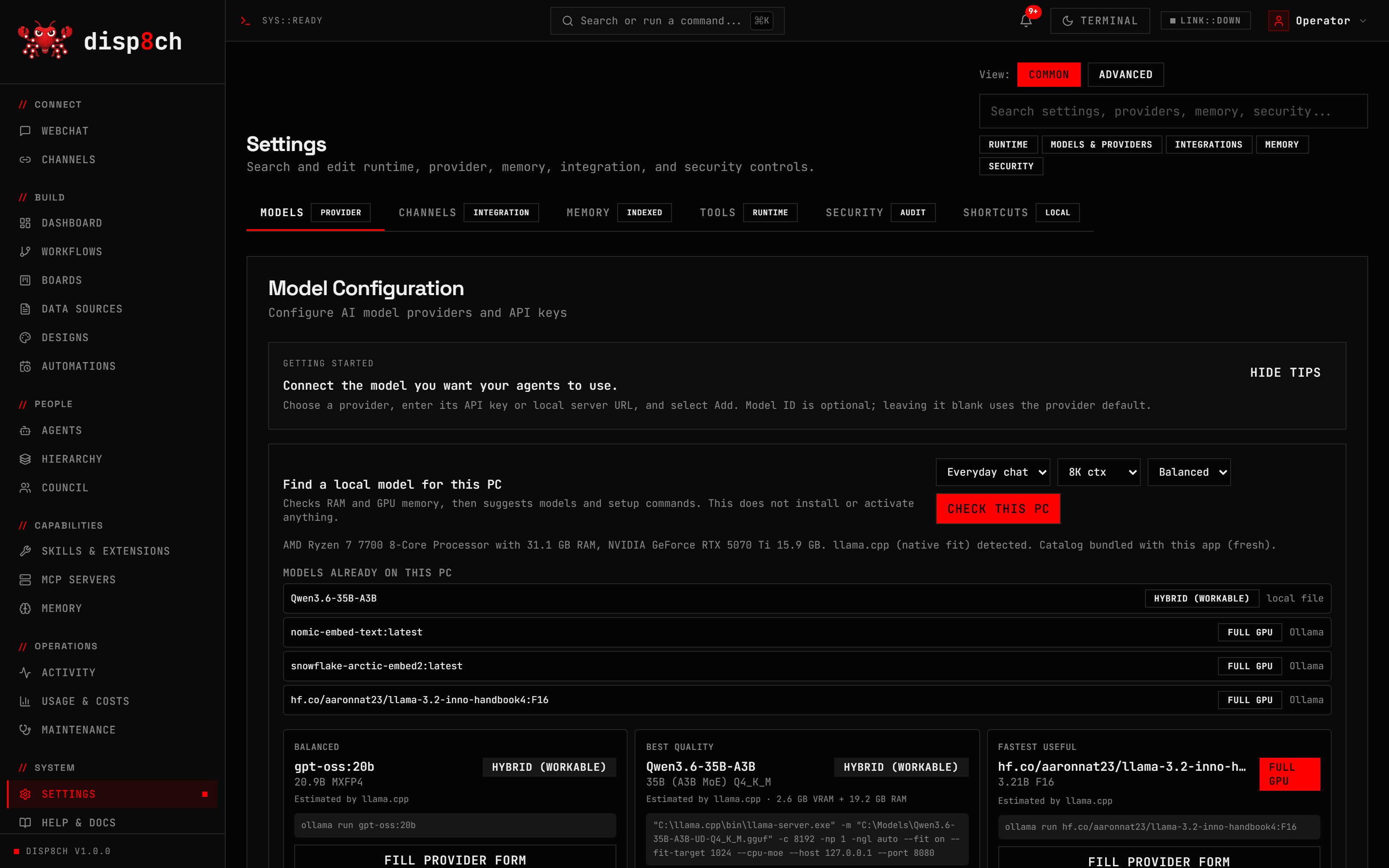
During onboarding, choose Local AI and select Check this PC. Disp8ch reads the machine’s CPU, RAM, GPU, free VRAM, installed runtimes, and installed models. It ranks practical local choices as speed, balanced, or quality.
The advisor is conservative by design. It does not silently download a model, start unknown executables, replace your active model, or upload local hardware details. It shows a command and leaves the action to you.
This is useful because local AI disappointment often comes from picking a model that is too large for the machine. A smaller model that fits well can be more useful than a larger model that swaps memory, stalls, or times out.
Step 3: test the connection
After the model is running, test the provider in Disp8ch. The test should confirm the base URL, model ID, and response path. Do this before relying on the model for workflows or source-grounded work.
If the test fails, check these details:
- Is Ollama running?
- Does the model tag match exactly?
- Can the app reach
http://127.0.0.1:11434from the same OS context? - Is another process blocking the port?
- Did the model finish loading?
For LM Studio, llama.cpp, vLLM, or SGLang, use their OpenAI-compatible base URLs instead. The local model feature page lists common defaults.
Step 4: start with read-heavy work
The safest first workflow is read-heavy. Ask WebChat to create a daily local research digest, summarize uploaded files, compare source documents, or create a board task from a document. Avoid external sends and file writes until you understand approvals and run history.
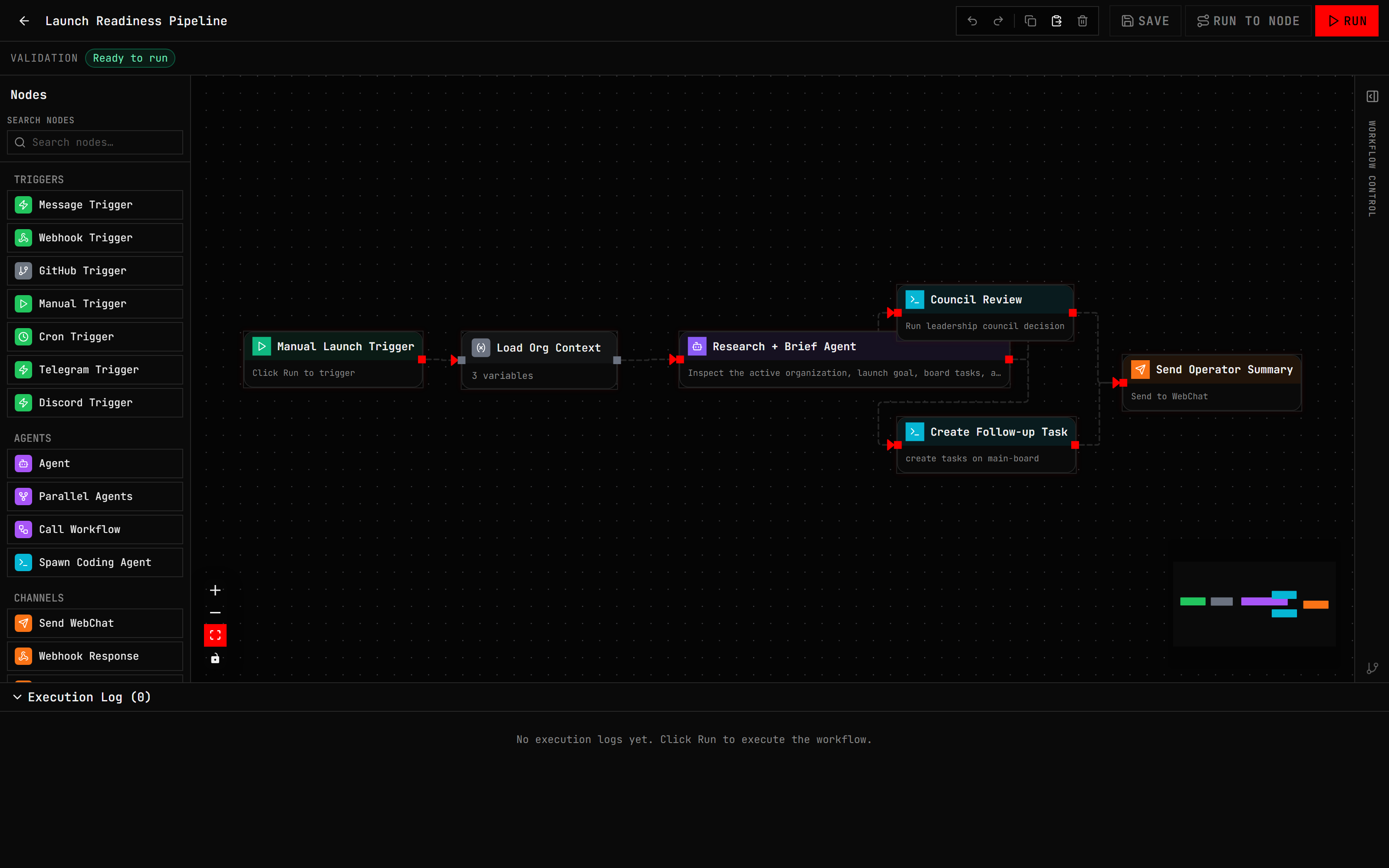
A useful first prompt is:
Build a daily 9 AM research digest workflow using my selected local model. Ask before saving if anything is ambiguous.When WebChat proposes the plan, inspect what it will create. After saving, open the workflow canvas, run Dry Run, and check whether any node has a mutating effect.
What can run without a hosted key
With a local model configured, core Disp8ch use can run without a model-provider key:
- WebChat over local workspace context
- Local tools
- Memory
- Visual workflows
- Agents
- Boards
- Council
- Local document research
- Local design and artifact work
Anything that reaches external services still needs network access and credentials. Web search, channel bots, cloud image generation, third-party APIs, hosted model calls, and remote webhooks are separate choices.
Memory with local models
Memory does not have to mean sending your profile to a hosted provider. New installs default to a built-in local embedding model for semantic memory search and fall back to keyword search if the local model cache is unavailable. You can choose Ollama embeddings if you want, but it is optional.
The important design point is review. Ask Disp8ch to remember a preference and it can save deterministically. Let the agent propose learned context and it appears as a candidate for review. That helps keep long-term context from drifting silently.
Practical model advice
Start with balanced. Use speed for older laptops or quick chat. Use quality for harder reasoning, coding, or research when the machine has enough memory. Do not judge a local model only by one answer. Test the workflows you actually need: summarization, extraction, tool planning, source Q&A, and repair suggestions.
If your local model struggles with tool planning, use a hosted model for the agent that needs it and keep other agents local. Disp8ch supports per-agent and per-workflow model choices, so local AI can coexist with hosted providers.
Next steps
Read Local Models in Disp8ch, then install the app and run one small workflow. If you are comparing products, read the comparison hub and choose based on operating fit, not only model support.